.png)

How to Sign Out a User from All Active Devices in Google Workspace

Updated: 11 hours ago
Table Of Index :
If you need to reset password Google Workspace for a user, changing the password is only the first part of the job. If the user is already signed in on a laptop, phone, tablet, or browser, some sessions may stay active for a short time unless you also reset their sign-in cookies.
This matters most when an account may be compromised, when an employee leaves the company, or when a device is lost. Resetting the password blocks future sign-ins with the old password. Resetting sign-in cookies helps force active sessions to sign out, so the user must sign in again with the new password.

1.Prerequisites
Before you start, make sure you have the right admin access.
You need either:
A Super Admin account, or
An admin role with enough permissions to manage users and security settings
A Super Admin has full access to the Google Admin console. A delegated admin may have limited access, depending on the permissions assigned by your organisation.
You should also confirm the user account you are changing. For sensitive cases, such as a suspected breach, verify the request through a trusted channel before resetting the password.
Step 1 Open the Google Admin Console
Sign in to your Google Workspace admin account.
Click your profile picture in the top right.
Select Admin console.
You can also go directly to: `admin.google.com`
Use the admin account for your organisation, not a regular Gmail account.

Step 2 Go to Directory and Users
Once you are in the Admin console:
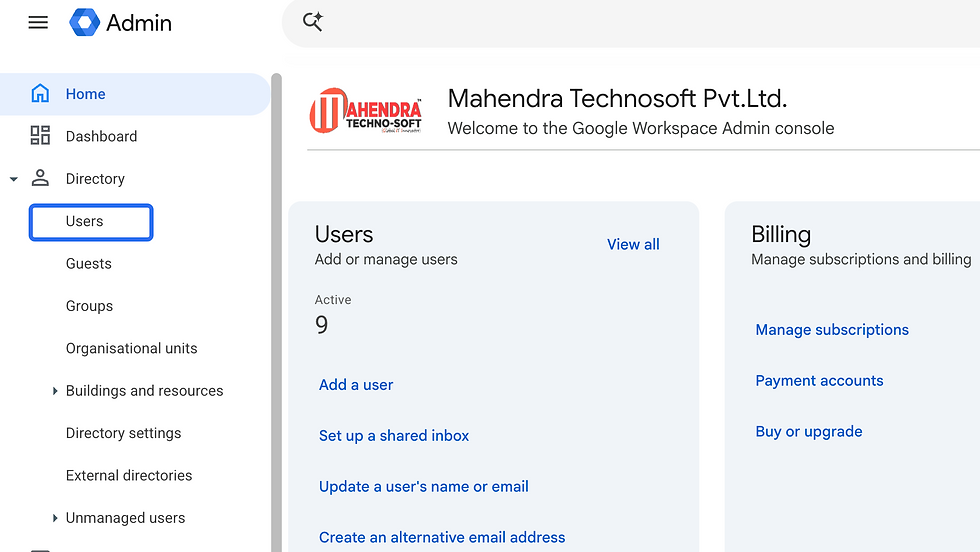
In the left menu, click Directory.
Click Users.
This opens the list of users in your Google Workspace account. If you manage many users, use the search bar to find the right person faster.
Step 3 Select the user from the list
Find the user whose password you want to reset.
You can search by:
Name
Email address
Organisational unit
Click the user’s name to open their profile page.
Take a moment to confirm you selected the correct user. Resetting the wrong account can interrupt work and cause avoidable support requests.

Step 4 Reset password Google Workspace for the user
On the user’s profile page:
Click Reset password.
Auto-generate a password
Enter a new password manually
Choose one of the available options:
Click Reset.
If you auto-generate the password, copy it securely before closing the window. If you create the password manually, use a strong password that is not used anywhere else.
Do not send the new password over an insecure channel such as plain email or an open chat. Use a secure password-sharing method, or ask the user to change it immediately after signing in if your policy allows it.

Step 5 Open the Security tab on the user profile
After resetting the password, stay on the same user profile page.
Look for the Security tab or security section on the user’s profile. Open it to view options related to sign-in, connected apps, and account access.
This is where you can take the next important step to sign out user all devices Google Workspace sessions by resetting sign-in cookies.

Step 6 Open Sign-in cookies
In the user’s Security area:
Scroll down until you find Sign-in cookies.
Click Sign-in cookies.
A sign-in cookie is a small browser file that keeps a user signed in. When you reset these cookies, Google invalidates active web sign-ins. This helps force the user to sign in again with the new password.
This step is useful when you need to reset sign-in cookies Google Admin console after a password change.

Step 7 Reset sign-in cookies and finish
Inside Sign-in cookies:
Click Reset.
Confirm the action if prompted.
Click Done.

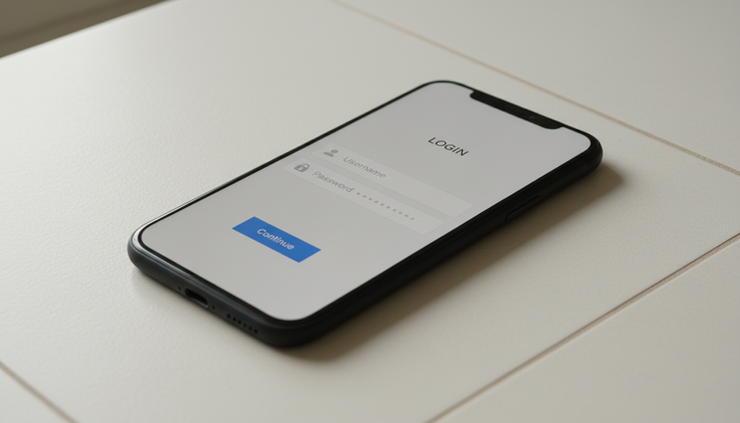
This signs the user out of active Google web sessions across devices and browsers. The next time the user opens Google services, they should be asked to sign in again with the new password.
3.What happens after the reset
After you reset the password and sign-in cookies, the user experience may differ depending on the device or app.
Google web apps
For Google web apps such as Gmail, Drive, Calendar, and Docs in a browser, the user should be signed out and asked to sign in again.
They must use the new password. If 2-Step Verification is enabled, they must also complete the second verification step.
Mobile devices
On Android or iOS devices, the user may need to sign in again before Gmail, Drive, Calendar, and other apps continue syncing.
Syncing means the device updates mail, files, calendar items, and other account data in the background. Until the user signs in again, new data may not appear on the device.
Third-party email clients and apps
Third-party email clients and apps that use OAuth usually need a fresh sign-in. OAuth is a secure way for an app to access a Google account without storing the user’s password.
Behaviour can vary by app. Some apps may reconnect quickly. Others may stop syncing until the user signs in again.
For a suspected breach, review connected apps under the user’s Security tab. Revoke access for any app that is unknown, unused, or suspicious. This is an important step when you need to secure compromised Google account access.
Password resets are simple, but the order matters.
Use these practices to reduce risk:
Reset the password first
This prevents the old password from being used again.
Reset sign-in cookies after the password change
This helps end active browser sessions across devices.
Enable 2-Step Verification for all users
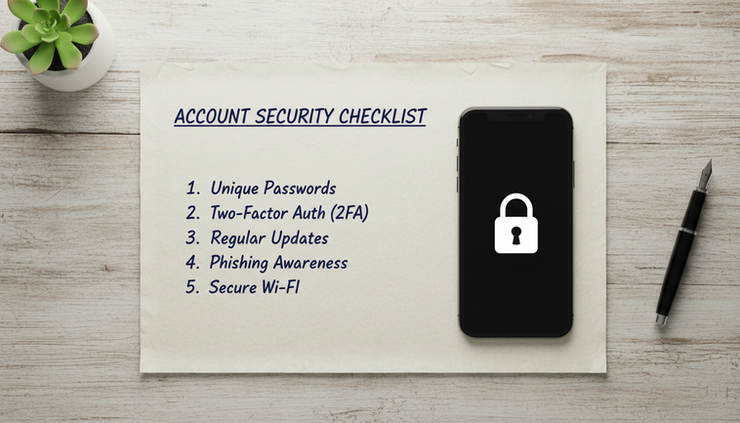
2-Step Verification adds another check during sign-in, such as a prompt, code, or security key. It helps protect the account even if someone learns the password.
Check for suspicious activity
If your Google Workspace edition and admin role include the Investigation tool or Investigate area, review recent sign-in and account activity. Look for unfamiliar locations, devices, or access patterns.
Review connected apps
Remove access for apps the user does not recognise or no longer needs.
Share the new password securely
Do not send passwords through regular email. Use a secure password manager, a trusted internal process, or a temporary password policy where the user changes it at next sign-in.
Document the action
Keep a simple internal note of when the reset was done, who approved it, and why it was needed.
FAQ
Does resetting the password sign the user out everywhere?
Not always. Resetting the password stops the old password from working for new sign-ins, but some existing sessions may remain active for a time. To force active Google web sessions to end, reset the user’s Sign-in cookies in the Google Admin console.
How long does it take for the sign-out to apply?
It usually takes effect quickly, but timing can vary by device, browser, app, and connection. Ask the user to close and reopen Google apps if they still appear signed in.
Can I do this for multiple users at once?
You can reset passwords for users from the Admin console, but signing out users by resetting sign-in cookies is typically handled from each user’s profile. For bulk security actions, check the options available in your Admin console and your Google Workspace edition.
Suggested alt text for the 7 Images
Google profile menu showing the Admin console option.

"Google profile menu highlighting the Admin Console option for account management." Google Admin console showing Directory and Users in the left menu.
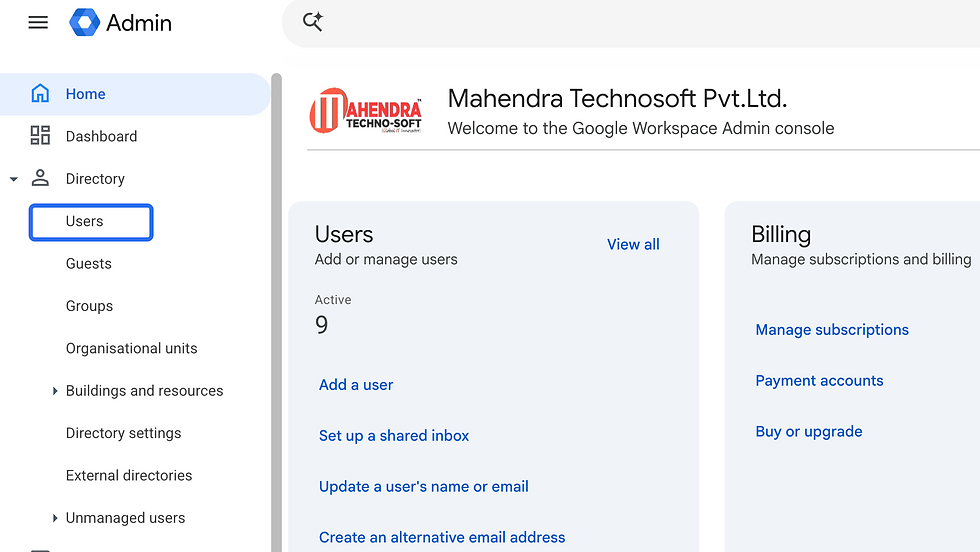
"Google Admin console interface showing Directory menu with Users option selected." Google Admin console Users page with a selected user account.

"Google Admin console Users page highlighting a specific user profile selection." Reset password panel showing generated and manual password options.
"Admin dashboard password reset panel showing auto-generate and manual options." User profile page showing the Security tab.
"User account details profile page in Google Admin displaying the Security section." Security tab showing the Sign-in cookies option.

"Google Admin Security panel highlighting the Sign-in cookies reset section." Sign-in cookies reset screen showing Reset and Done buttons.

"Sign-in cookies reset confirmation prompt in Google Workspace Admin console."
Final checklist
Before you close the task, confirm these items:
The user’s password has been reset.
The new password has been shared securely.
Sign-in cookies have been reset.
Unknown connected apps have been reviewed or removed.
Suspicious activity has been checked where available.
The user has signed in again successfully.
Changing the password is a good start, but it is not enough for sensitive situations. For stronger protection, reset the password first, then reset sign-in cookies so active sessions are forced to sign in again.
Need help with Google Workspace setup or security? Contact Mahendra Technosoft.



Comments